6. Absence
Absence Module
A license must be active with the absence module option at a minimum.
|
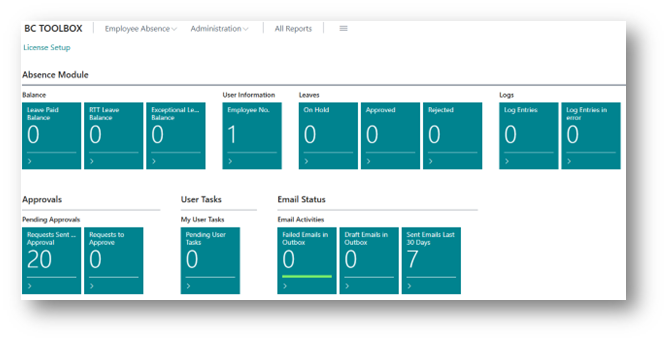
Role Center
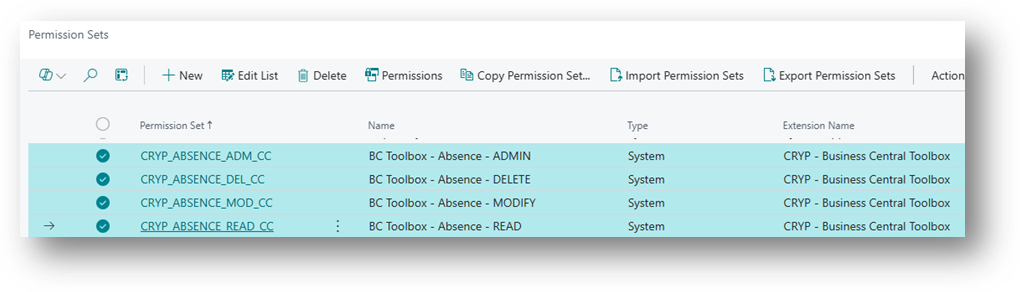
Check permissions
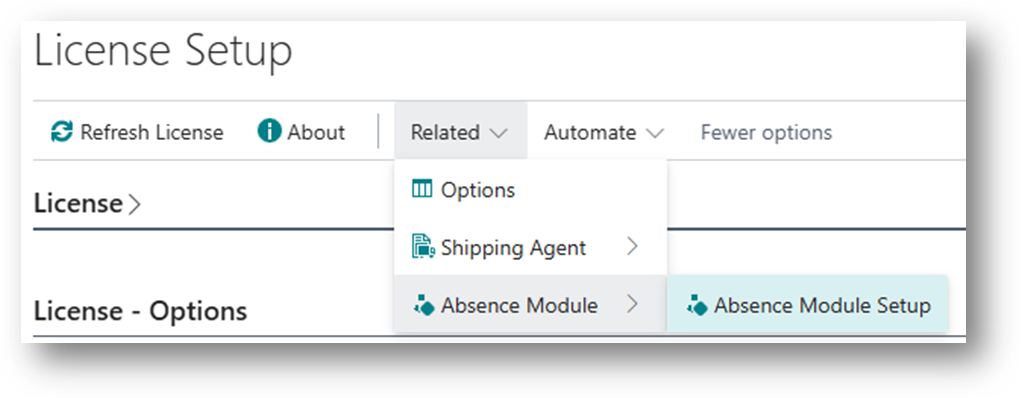
Access to the absence module
If the license is valid and the option is enabled, the absence module menu is displayed:
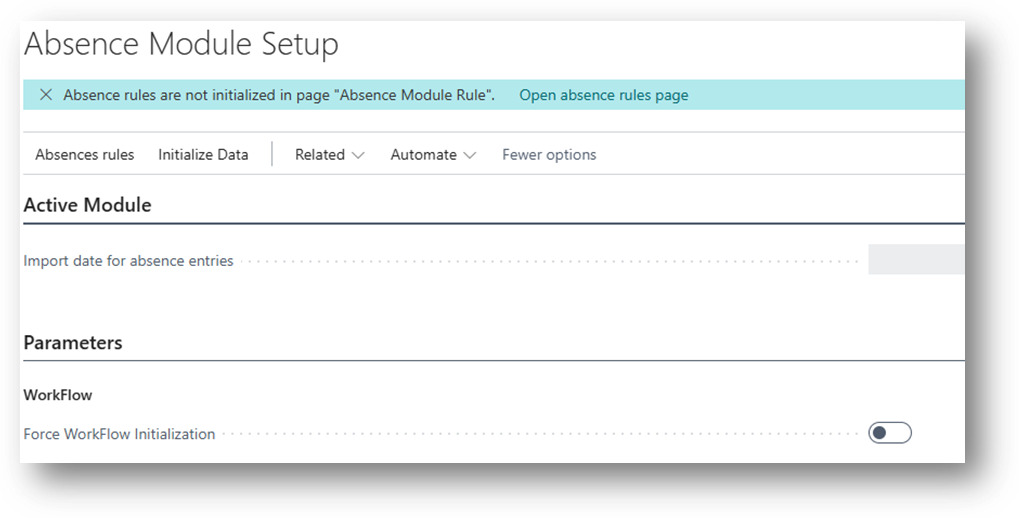
Initialize absence rules
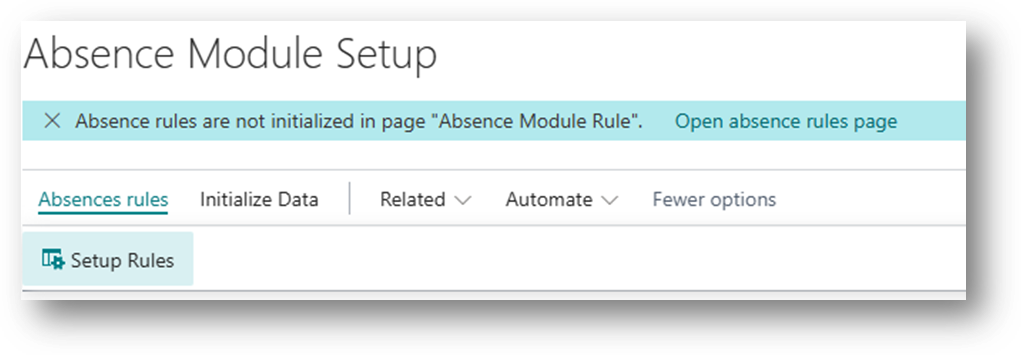
This page allows you to initialize the types of leave that you want to assign to employees.
There are different types:
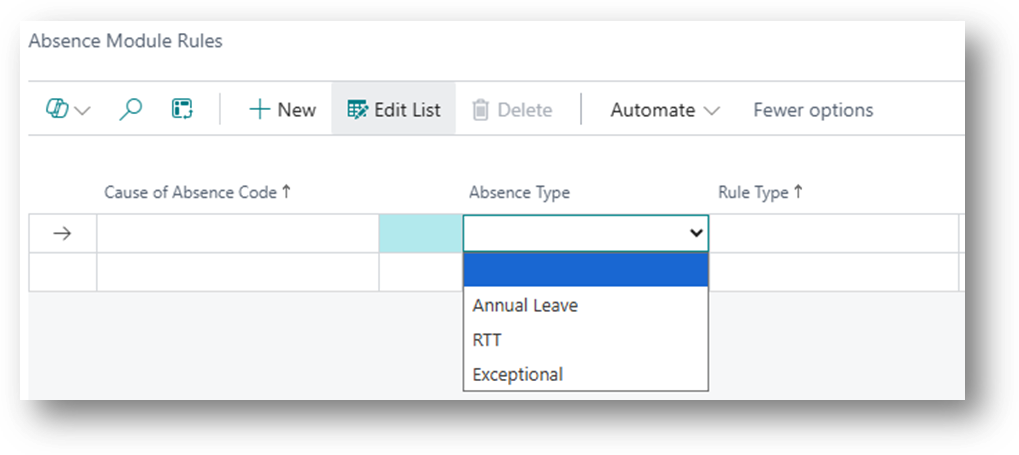
Annual leave can have 2 types of rules:
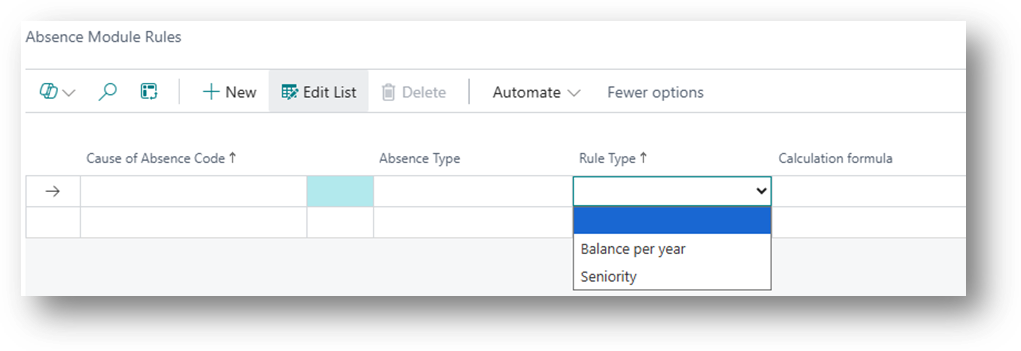
While the other types of leave can only be of the "Balance per year" type.
|
The following rules can be defined:
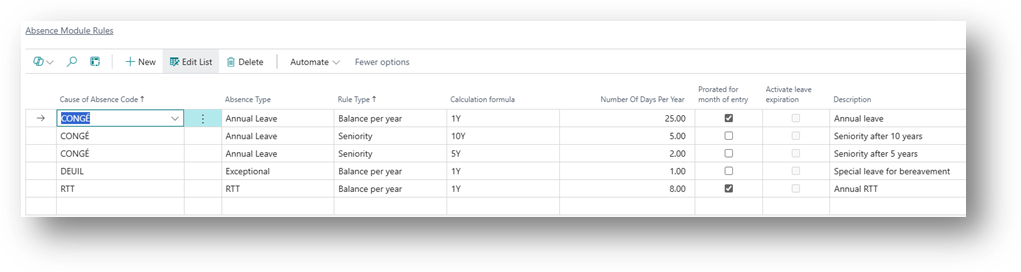
- A balance of (paid) leave for the year.
- An extra number of days for seniority.
- A balance of RTT.
- A balance of days for exceptional leave (death, marriage, birth, etc.).
The absence reasons defined in this page are absences associated with a counter that you want to manage (increment / decrement).
For absences that you do not want to count (unpaid leave), it is not necessary to define absence rules.
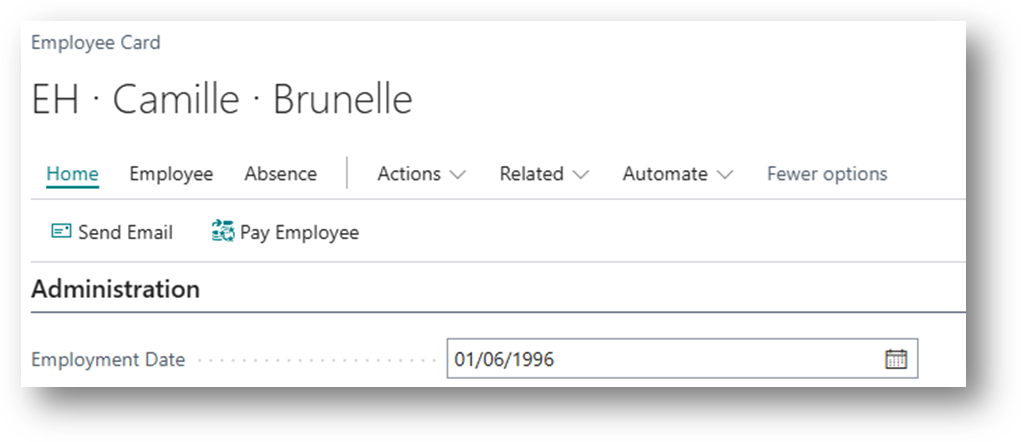
It is also possible to make a pro rata in relation to the date of entry of the employee into the company:
Import absence entries
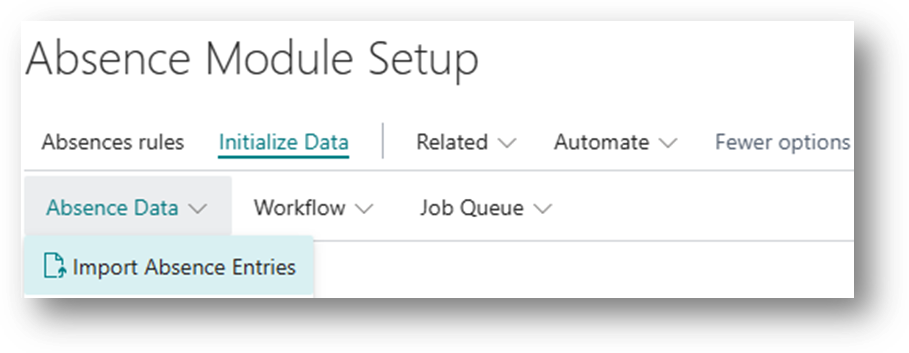
It is possible to import the employees' absence entries to take over an old balance already obtained before the implementation of the absence module.
The following page appears:
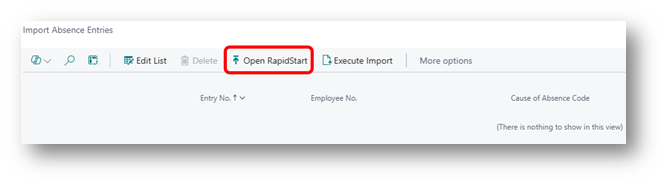
Click on the "Open Rapidstart" button

NB: If the line with the code "IMPORT_ABSENCE_MGT" does not appear, please contact CRYP CONSULTING support.
Click on the "Import package" menu, then "Import from Excel":
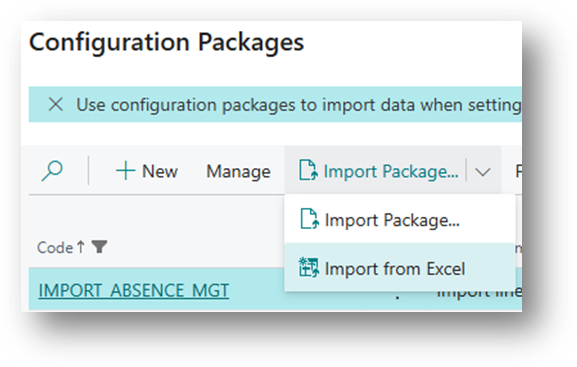
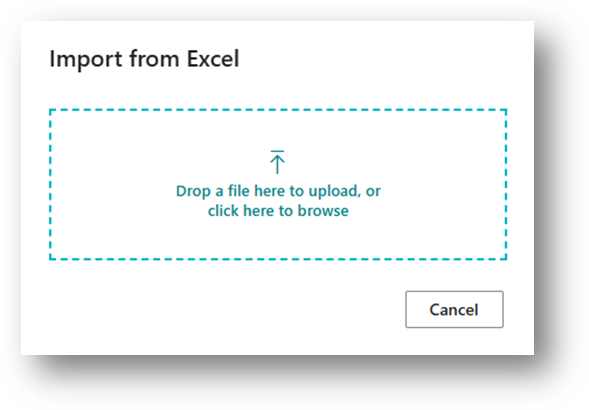
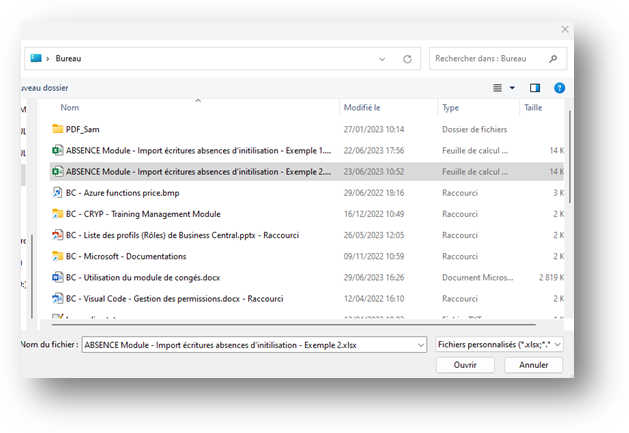
Select the Excel file, format with the predefined template provided by CRYP CONSUTLING to initialize the employees' leave balance:
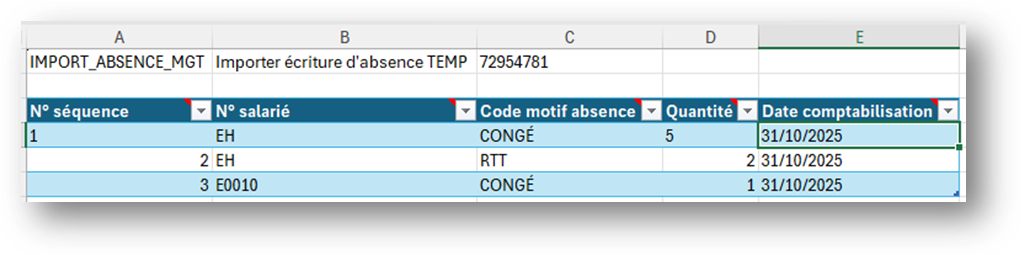
The following page appears:
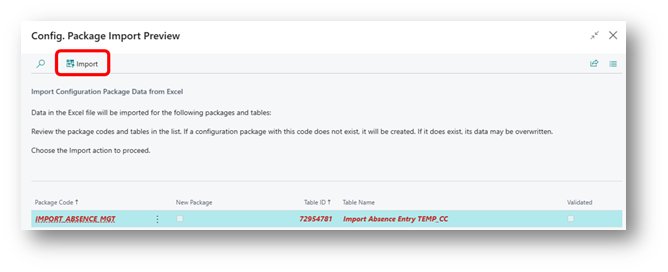
Click on the "Import" button:
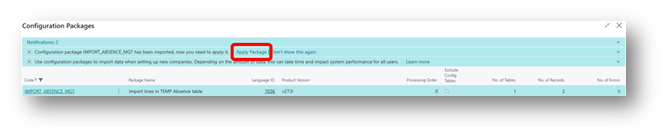
Then click the "Apply package" link in the notification.
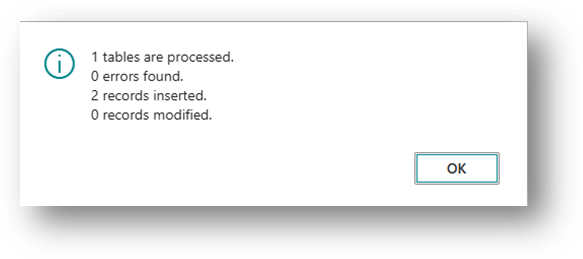
The lines now appear on the "Import TEMP absence entries" page:

Select the row(s) to be permanently imported, then click on the "Execute Import" button.
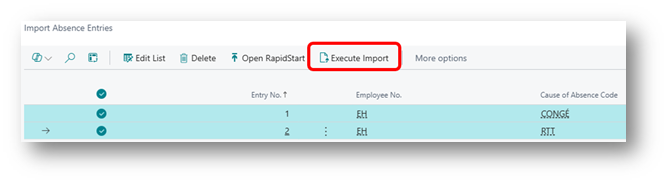
The imported lines are deleted and are created on the employee absence entries page:
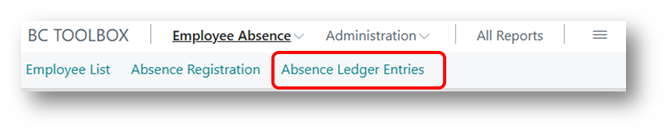

Initialize leave entries for users
Now that the severance leave balance for employees has been imported into the leave module, it is possible to run the data initialization.
Data initialization means creating the absence entry lines for each type of leave defined in the absence rules for each employee.
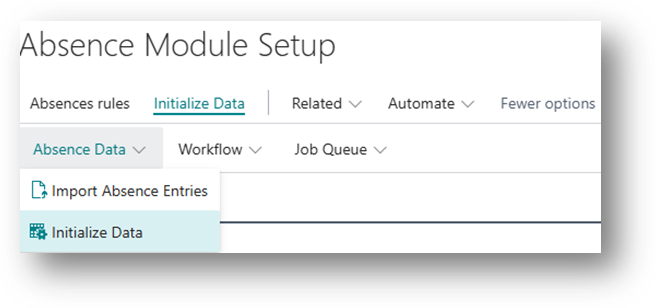
Each month , a process will be run to check and update the absence entries (and therefore the leave balance per user).
Initialize workflow data
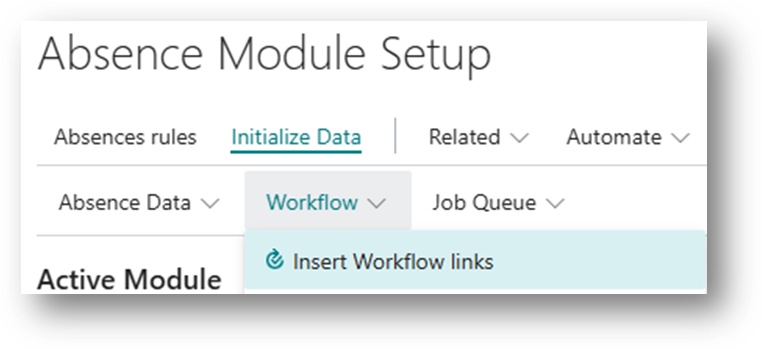
Click on the following menus:
- Insert Workflow Links
- Insert Workflow Group and Member
- Import workflow
Check and adapt the settings by opening the pages with the following menus:
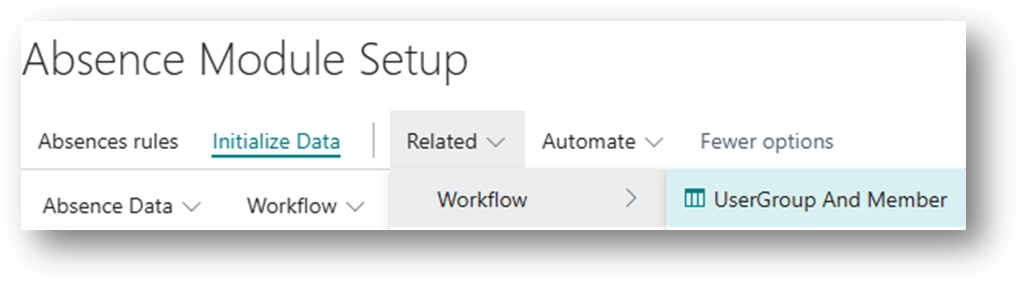
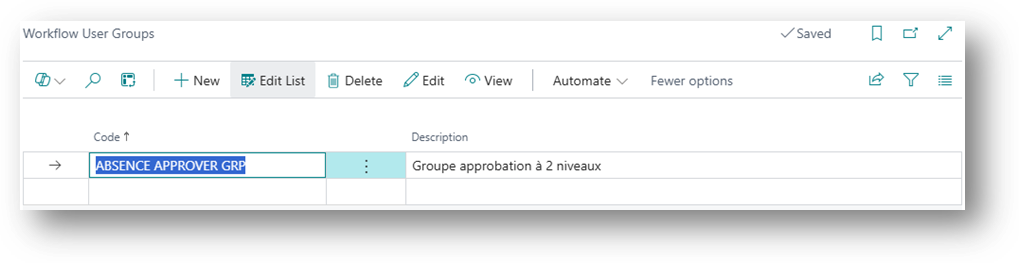
Click on "Edit" and then insert at least one approver into the list.
In the workflow:
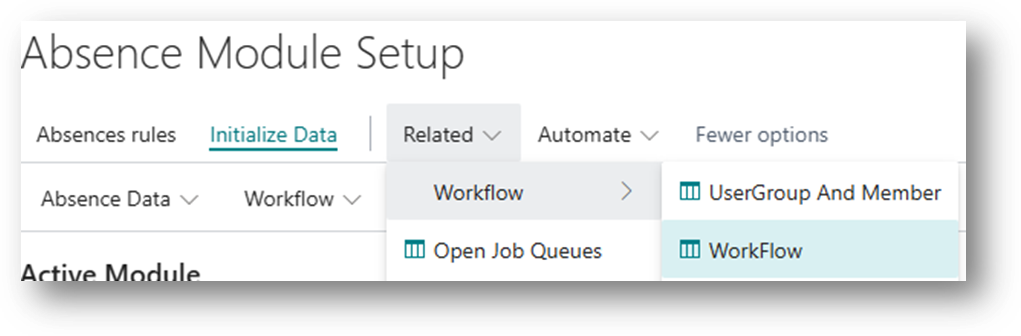
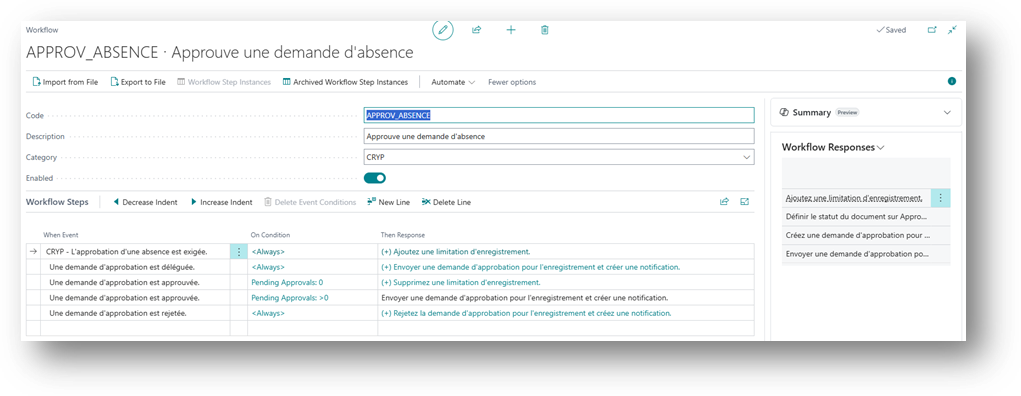
Set the sender to be notified:
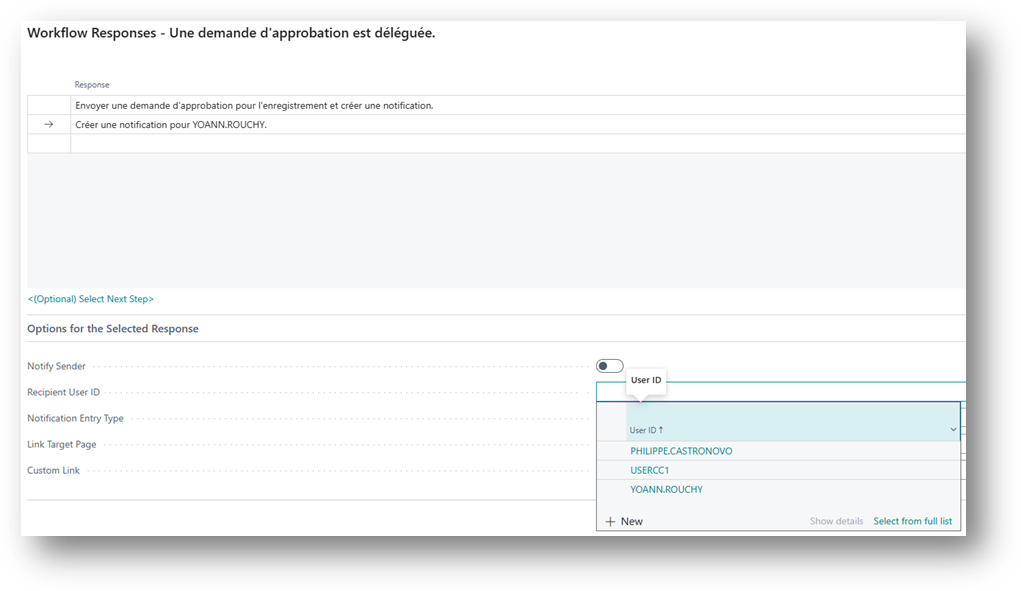
And:
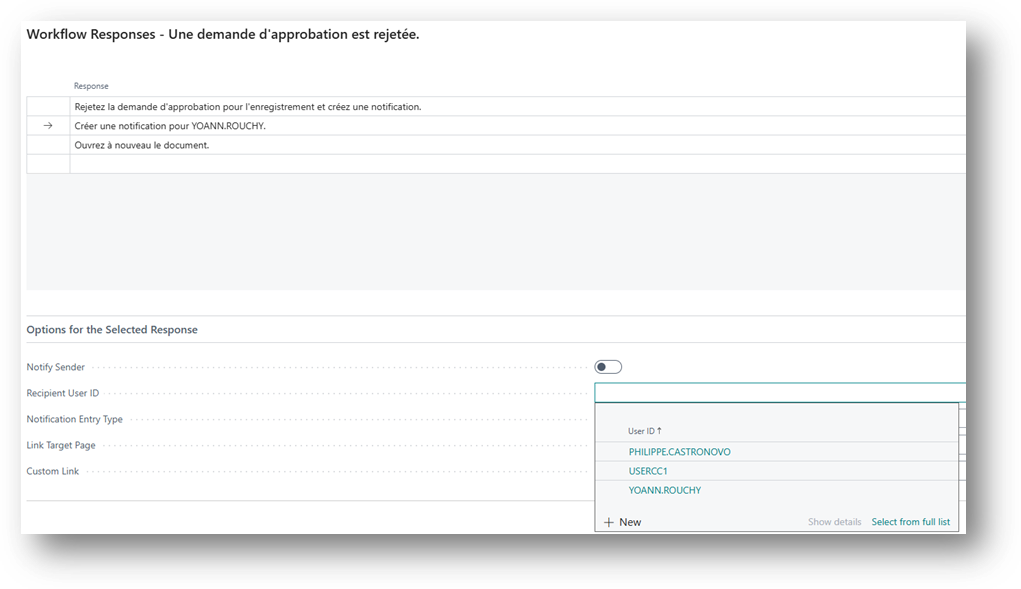
Then "Activate" the workflow.
Business Central absence module
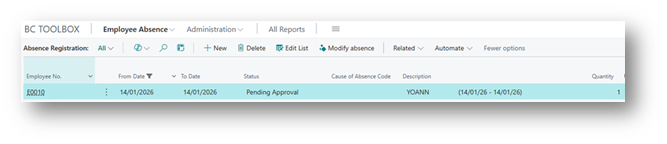
In Business Central, when a new absence request was created:
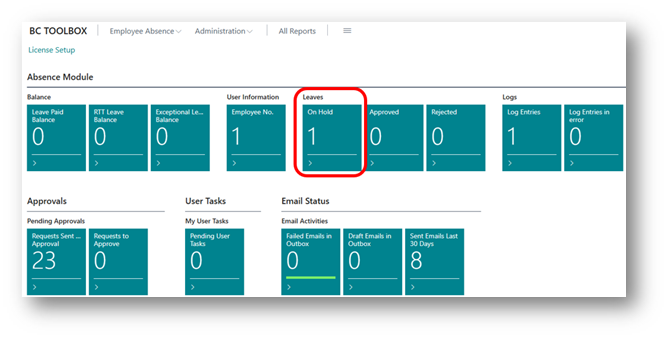

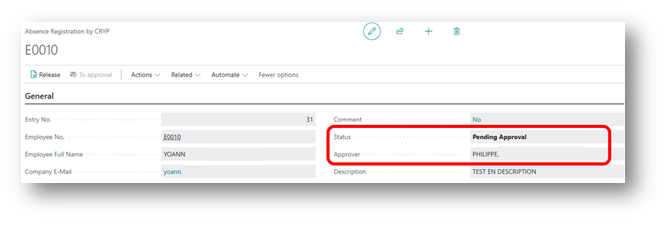
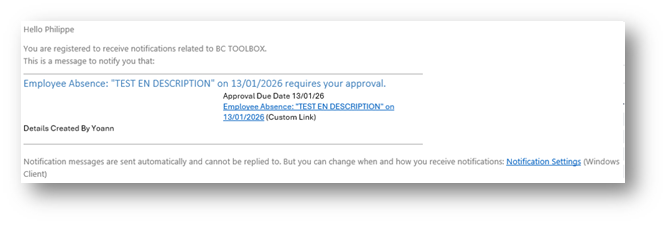
An email, from Business Central (approval workflow), has been sent to the approver defined in the line above:
Application Approval
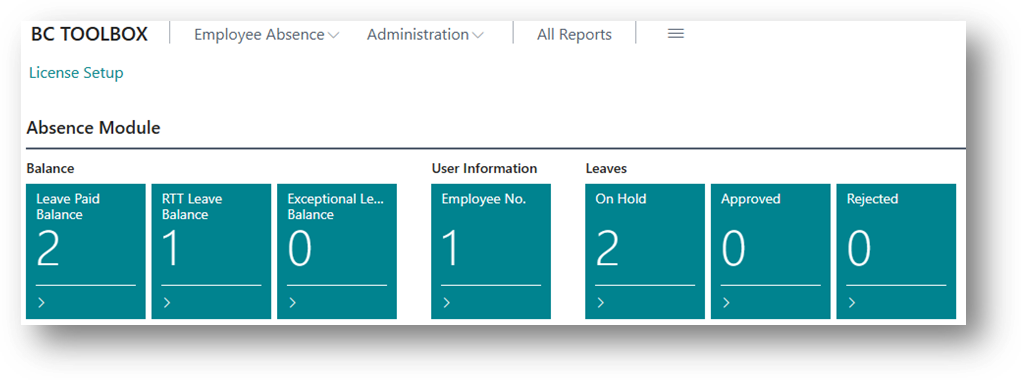
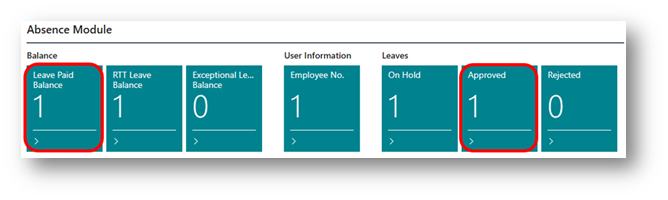
When the approver approves an absence request, the balances of the used/approved quantities are updated on the dashboard (for incremental absence types).
Business Central App - Phone
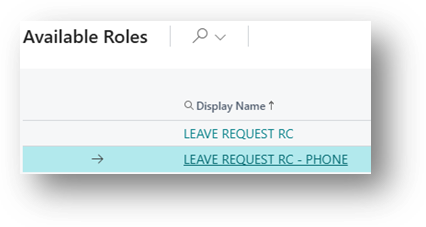
A specific dashboard has been created for the "Business Central" mobile application. This dashboard is called: "LEAVE REQUEST RC - PHONE".
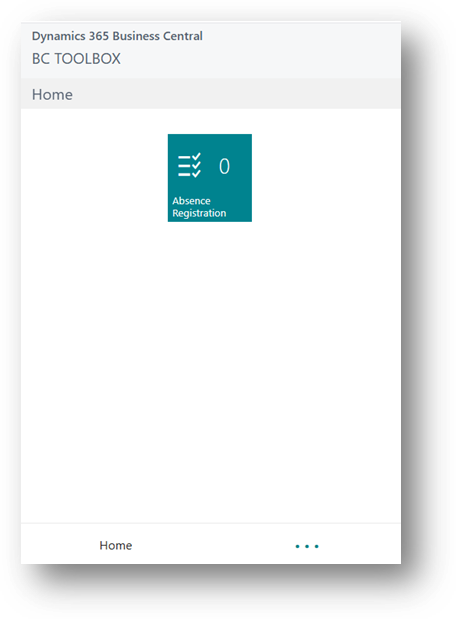
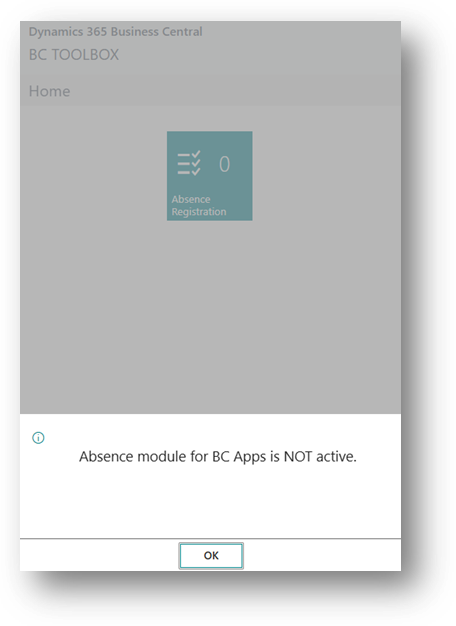
Access to the absence module on the mobile application is via a specific license. Be sure to request the activation or you will see an error message.
With a valid license:
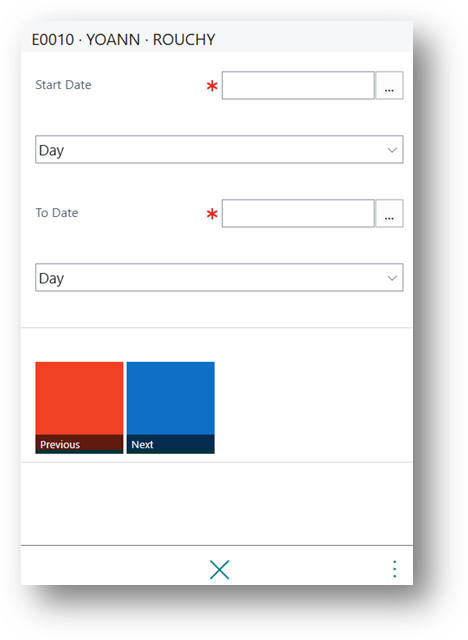
Enter the dates and click "Next".
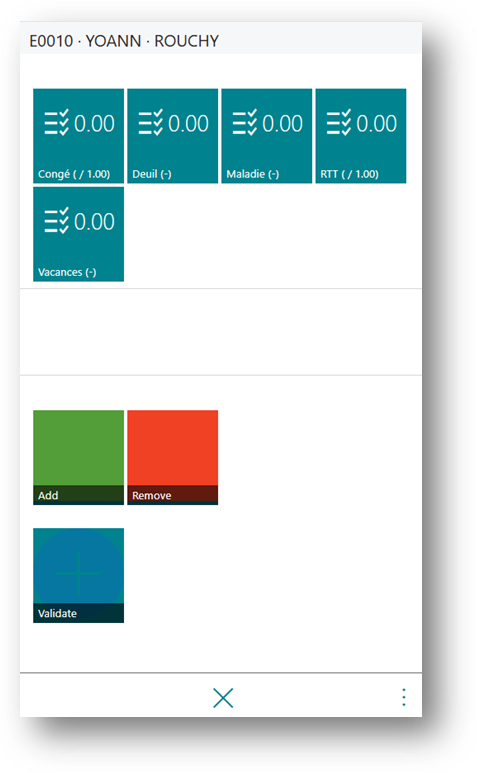
Choose a type of absence (Leave / Sick / RTT) then click on "Add" or "Remove" to define the desired quantity.
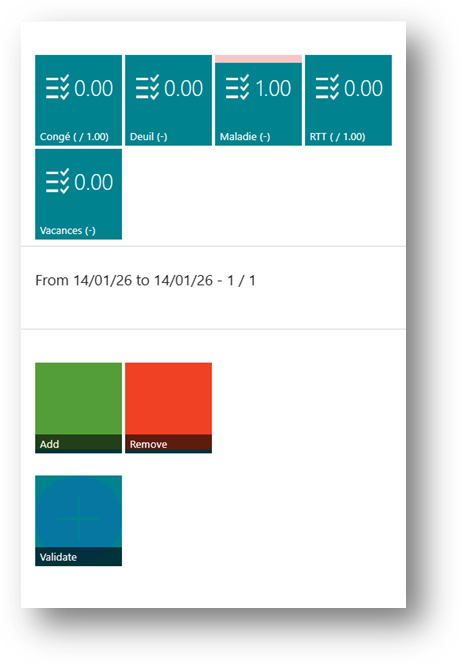
Once the quantity is defined (X / Y):
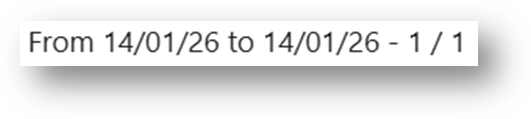
Click Validate to create the absence request in the list of absence requests.
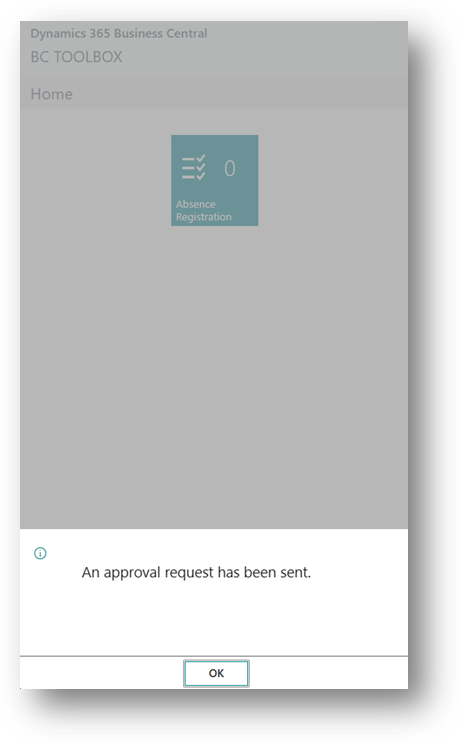
In Business Central: